Showing posts with label Scratch tutorial. Show all posts

Wednesday, December 21, 2011

Game show scoring

In the previous Malibu Beach Crab project we saw how to keep score in Scratch using a variable. Here we will create a more interesting and entertaining way to sum up scores. Have you ever played a game or seen a gameshow where, by the end of a section you would see the scores total up with the numbers moving, sometimes with sound effects? We will see exactly how to do this.

I have put this Scratch tutorial in a project itself, so you can simply watch it. Feel free to download the script template for score keeping (or as I call it, gameshow scoring) and reuse in your own projects!


If you prefer reading the tutorial, then continue on…

Tutorial: Game show scores on Scratch

We do this in only two steps:

1. Prepare variables

Obviously, we need at least one variable for the scores, and an additional one to keep the total. In this tutorial, we will create three variables for the scores (i.e. score1, score2, score3) and another (i.e. totalScore) for the total score. In my tutorial project above, I populate score1, score2 and score3 with random numbers for illustration purposes. Normally, we would use them to keep more meaning scores. You may look at the the Fruit Basket project to see how I use them to keep count on different fruits.

2. Do the scoring

The main idea here is that we want to sum up score1, score2 and score3, and put the sum in totalScore. We could have just gone and set totalScore with the sums like this:

Summing up scores (in a boring way)
This is quick and silent. We won't do this because we want something dramatic! What we want is to see score1, score2 and score3 decreasing one by one as totalScore sums them up. We also want to add sound effects to make us feel good about the many points we have scored! So this is what we do instead:

Summing up score1 (in a more interesting way)
We repeatedly decrease score1 until it is zero. Every time we decrease it, we increase totalScore. Here I increase it by just one, but it could be any number (in Fruit Basket I increase totalScore by different amounts depending on which fruit it is). As we do this, we also play a note for a very short beat. Which instrument and note, and how many beats it should play are of course up to you to vary to your liking.

Wait 0.5 seconds before appending similar blocks to sum up score2
After score1 is done, we wait a while before moving on to score2. We do the same for score3 by appending similar blocks below the ones for score2. If you have more scores to sum, then just add more repeat until blocks to the template with the variables adjusted accordingly.

Appending similar blocks below to sum up score3

Sunday, December 11, 2011

Three ways to program falling objects in Scratch

Hey, folks! Of late, our projects have been using a lot of scripts related to falls; we used the same script in making Scratch Cat jump and fall. We also had a programming lesson on falling, and the script template includes landing too.

In this post I am going to wrap it all up by discussion three different ways to program falling objects. Take a look at this project:


The three ways to programming falling objects are:

1. Falling with gravity

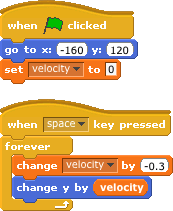
We have discussed this in great detail in the tutorial on falling simulation. The main point about this script is that we always change the sprite's y position by a certain value, velocity, at every loop. velocity's magnitude increases at every loop, so the sprite appears to fall faster and faster as if pulled by gravity. Changing velocity gives the effect of stronger gravitational pull, and the sprite accelerates even faster. Go on, test it by changing velocity's value.

Script to fall with gravity

2. Falling by changing y with a constant value

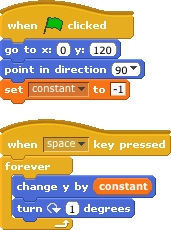
In this script, we change the sprite's y position by the same value at every loop (we put this value in the variable constant in our script), so it does not look as if the sprite is falling under gravity. It is merely moving downwards at a constant rate. Increasing constant will speed up the sprite's movement downwards.

Script to fall with constant y change

3. Falling by using the glide block

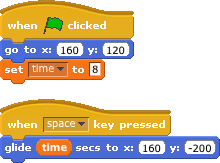
The glide_secs to x:_y:_ block lets up specify a specific position that we want to move the sprite to, and the time it takes to get there. Since we are using it here for a fall, we really only want to move it to a smaller y position. Our x coordinate remains the same. The glide_secs to x:_y:_ block moves the sprite by a linear change, so it really is just like changing y constantly. I have set the glide time here to keep pace with the second example. You could experiment with other values.

Script to fall using the glide block
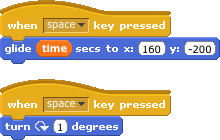
The glide_secs to x:_y:_ block is an instruction on its own. This means that until the gliding is done, there is nothing else we can ask the sprite to do in the same script.

If we do...
Script to turn after gliding
...it means that the sprite will glide all the way down, and then make a 1-degree clock wise turn. This is unlike the second example, where we snapped the turn clockwise_degrees block to the change y by_ block, and have both movements occur at every loop.

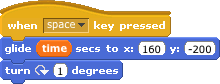
 To make the sprite turn as well as glide, we will need to use this script combination:

Script combination to glide and turn at the same time
 There we have it, three ways to make objects fall in Scratch. Feel free to experiment with the variables and see the difference.

Sunday, November 6, 2011

Programming falling objects in Scratch

How can we write Scratch scripts to simulate falls? In a recent project we programmed a falling ball. Here, I am going to explain it from a different angle (see and download this project at scratch.mit.edu),

Let's do a little thought experiment. What is the simplest way to make an object fall? We could start by constantly changing its y position, like so:

Change y position of the object at each loop iteration
We could put the value of this change in a variable (we will just call this variable v) and our code would be like this:

Using a variable to contain the downward displacement
If we run this script, the first thing we'd notice is that the fall is very unnatural. This is because the object is falling at a constant rate. It moves downwards by the same distance at every loop iteration. A fall in the real world is not like that - a falling object in the physical world moves faster and faster downwards all the time. To simulate this we simply add a statement block to increase v by a small amount at every loop:

Increase downward displacement at every loop iteration
At this point, you may be confused as to why we are changing v by negative 0.5 when previously we had mentioned we wanted to increase v. The negative sign denotes that the direction of the change is downwards. We increase the magnitude of v by 0.5 downwards, and that is equivalent to changing v by -0.5.

That was actually all the code we need to simulate a falling object.

Making the Scratch sprite land

Most of the time, we would want the object to be able to land on the ground (or something else, anything). How can we program landing with Scratch? Let's think about this again.. When we jump off a chair in the physical world, why are we able to land on the ground and not sink further in? After all, we are always acted upon by gravity, meaning that we are always pulled towards the centre of the Earth. So why not sink further in?

The scientific explanation for this is that the ground exerts a force equal to the gravitational force on us. The two forces cancel leaving us stationary, since there can be no further movement without a force.

We can use the same concept in our script. We insert statement blocks to cancel out the falling distance (i.e. the v variable) when the object is on the ground.

I will suppose that when our object touches the ground, its y position is -80.  So I will use the condition if y position < -80 to determine whether the object is on the ground. We could of course use other means, like the sensor blocks for example.

Here is the complete script:

Final script
What simply happens now is that when the object lands, we set v to a positive value of the falling displacement i.e. set v to 0.5. In the very next statement block, v is decreased by the same amount (i.e. change v by -0.5) leaving it to result to zero. When the program later executes change y by v it is effectively changing the object's y position by zero, and so the object stays stationary.